
 Flightstrip
Which agent needs you?
A Mac menu bar app for Claude Code, Codex and T3 Code. It shows which session needs you and takes you straight to that thread. Turn on Rush Mode and every reply lands you on the next one.
Free Version 0.1.0, macOS 14 or later SHA-256
One session at a time.
Reply, and the next one opens.
Press Send, or let it run. The demo loops, so sessions you finish come back around.
You remember Rush from poker apps. Now it’s here for your agents.
In Rush, you fold and you’re instantly at the next table. Rush Mode does that with your agent sessions: send a message and you land on the next session that needs you, in its own app, with no list to scan.
Send a message
Reply in the agent’s own app, like you already do.
The session gets to work
Flightstrip sees it start and counts it as replied.
The next one opens
Sessions that need you come first, then finished ones waiting on a reply. Nothing repeats until you’ve been through the whole list.
- Next ⌃⌥N
- Skip it for now. It comes back later in the run. The shortcut works from any app.
- Done
- Hidden until there’s news. If it’s still working, it comes back when it finishes.
- Snooze
- Hidden for 15 minutes, an hour, or until 8 tomorrow morning. A new approval brings it back early.
- Back
- Go back to the last session and undo what you did to it.
- Hold
- Stay on each session after you reply, until you click Done, Next or Snooze.
If you click away, the session’s title in the toolbar takes you back.
Focus mode. Kind of like Stage Manager, for your agents.
Rush starts in Focus mode, so every other app gets out of the way. The current session sits centered, with a toolbar above it, actions below it and Up Next in the corner. When the next session comes up, its app takes over. Turn it off from the toolbar, or in Settings if you’d rather not start there.
Everything goes back when you turn it off, stop Rush or quit. Centering needs Accessibility permission, which macOS asks for the first time. Without it, other apps still hide and the bars sit at the top and bottom of the screen.
Choose what comes up
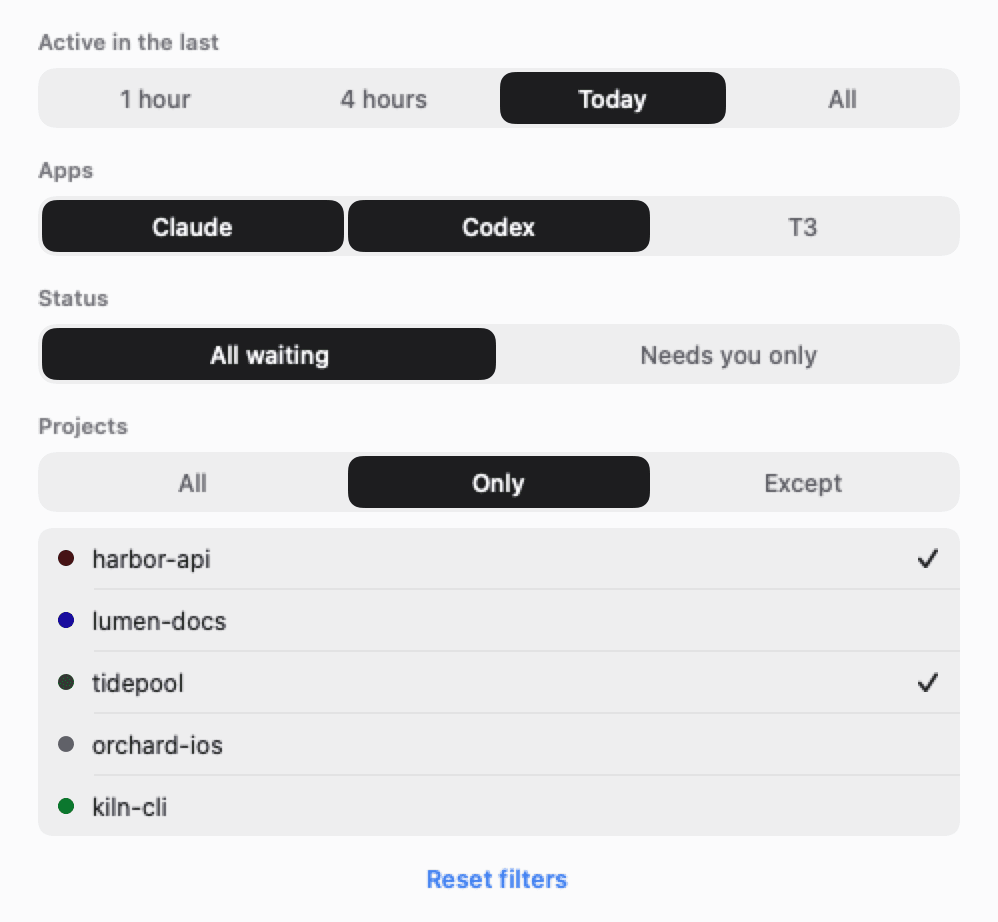
Limit a run by how recently a session was active, by app, by status or by project. It starts with the last 4 hours, and your choices are saved. If a filter is hiding a session that needs you, Rush says so. In Focus mode, the slider button opens the filters.
Hands off
Rush opens your sessions and arranges your windows. It never approves, replies or sends anything. If you’re working in another app, it waits instead of pulling you away.
Up Next
The next four sessions and the last three you handled, in the corner of your screen. Click an upcoming one to go to it now.
Click a session. You’re in that thread.
Flightstrip opens the exact thread, in whichever app it lives in, so you never hunt through a sidebar.
From one glyph to a whole side monitor.
The menu bar icon turns amber and shows a count when something needs you. Open the list from there, or keep it floating above your other apps on every Space. Make the window wide and it becomes one column per state. Light by default, with dark in Settings.
Companion: a small window parked beside your agent app.
Click a session and the window behind it changes.
One strip per session.
What needs you goes first.
Every session is in one of four states.
- Needs you
Waiting for your approval or answer, or stopped on an error.
- Working
The agent is mid-turn. Nothing for you to do yet.
- Your turn
The agent finished and is waiting for you to read it and reply.
- Idle
Nothing recent, or stopped. Sessions from today and yesterday stay listed, so you can pick one back up.
Flightstrip works out each state from the session’s recent events, so it can occasionally be wrong. A slow tool can look like it’s waiting on you.
Everything your agents shipped, three ways.
The Activity window shows commits, pull requests and file edits as they happen, and every time an agent stopped for you. Watch it live, or replay the last 48 hours at up to 360x.
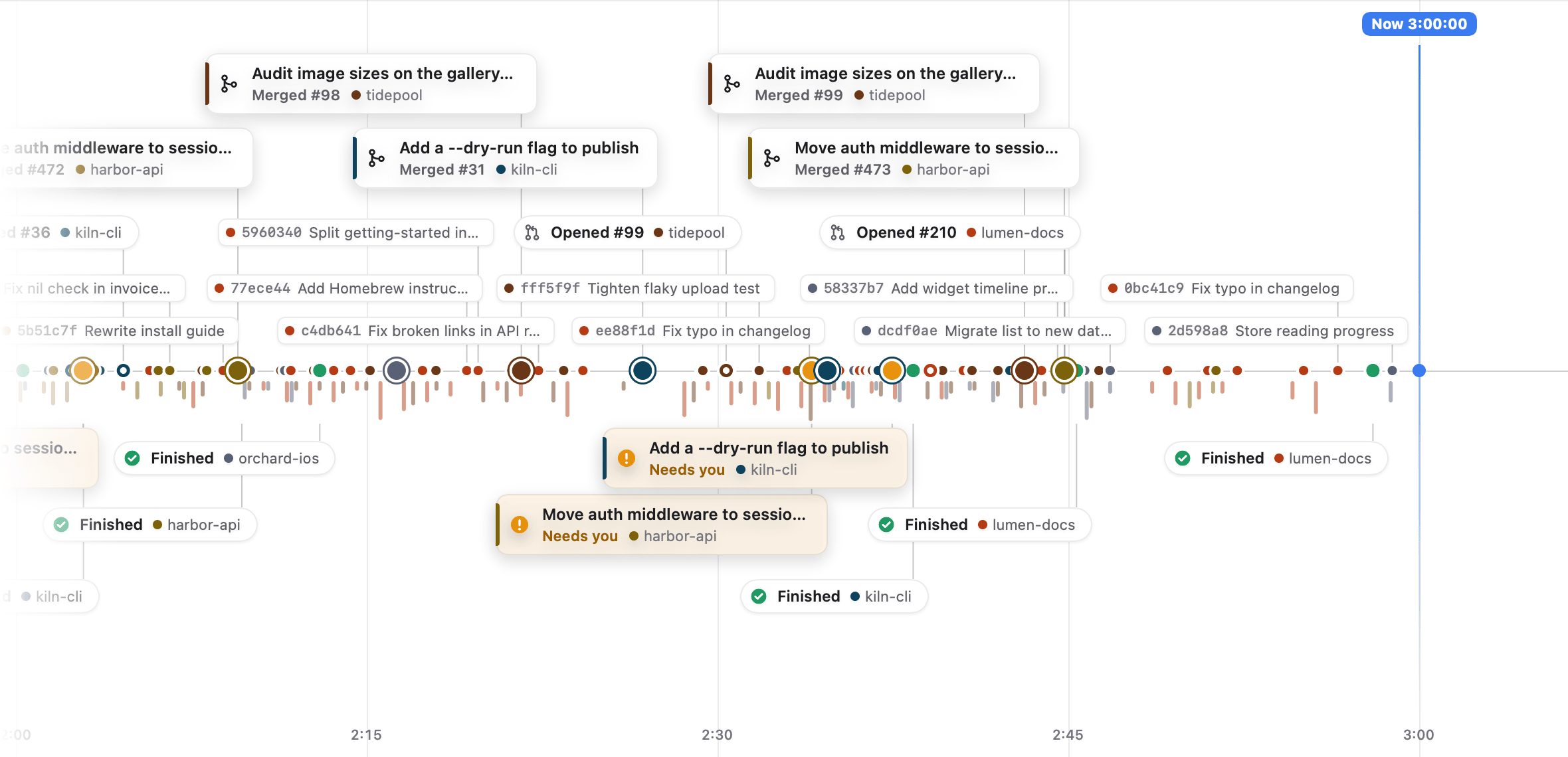
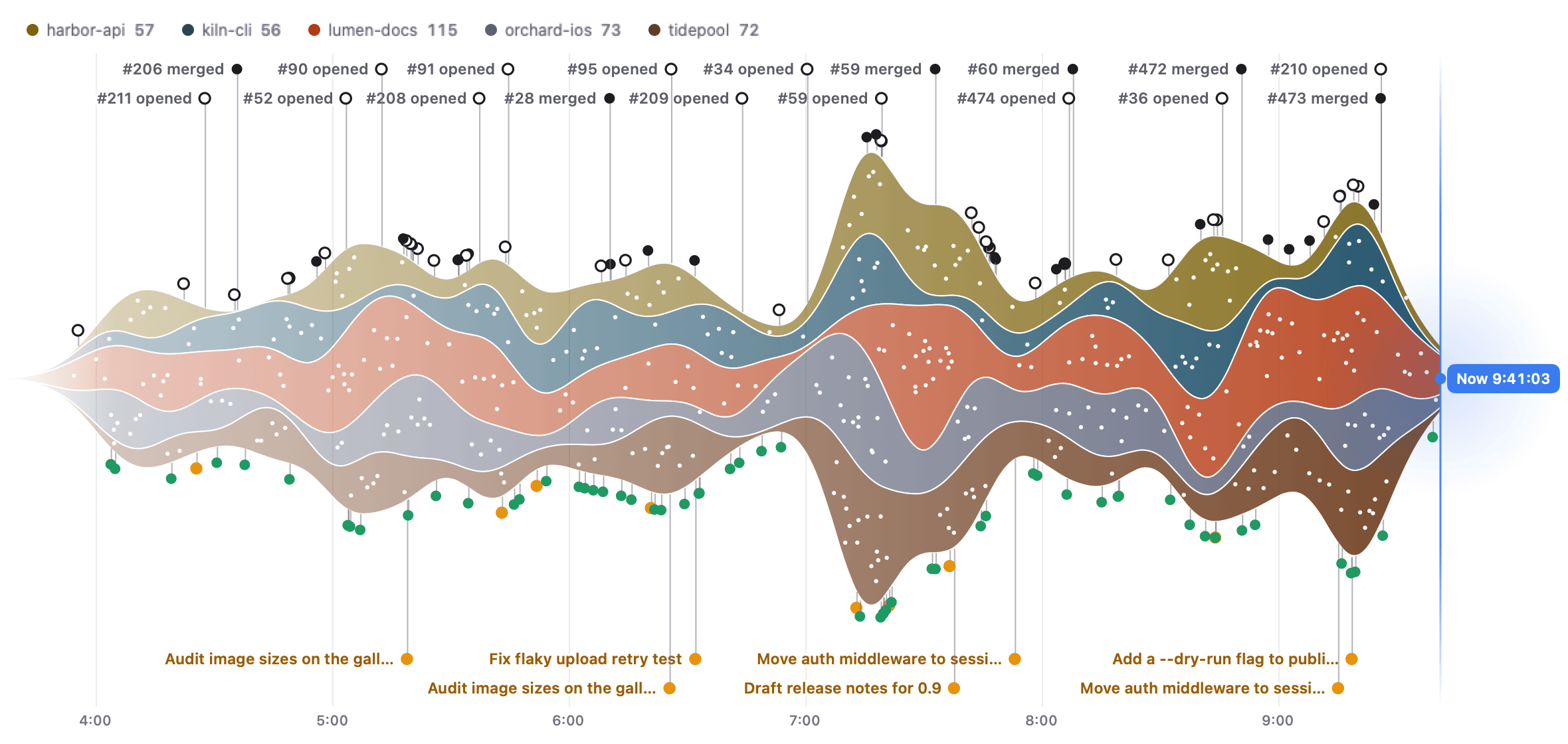
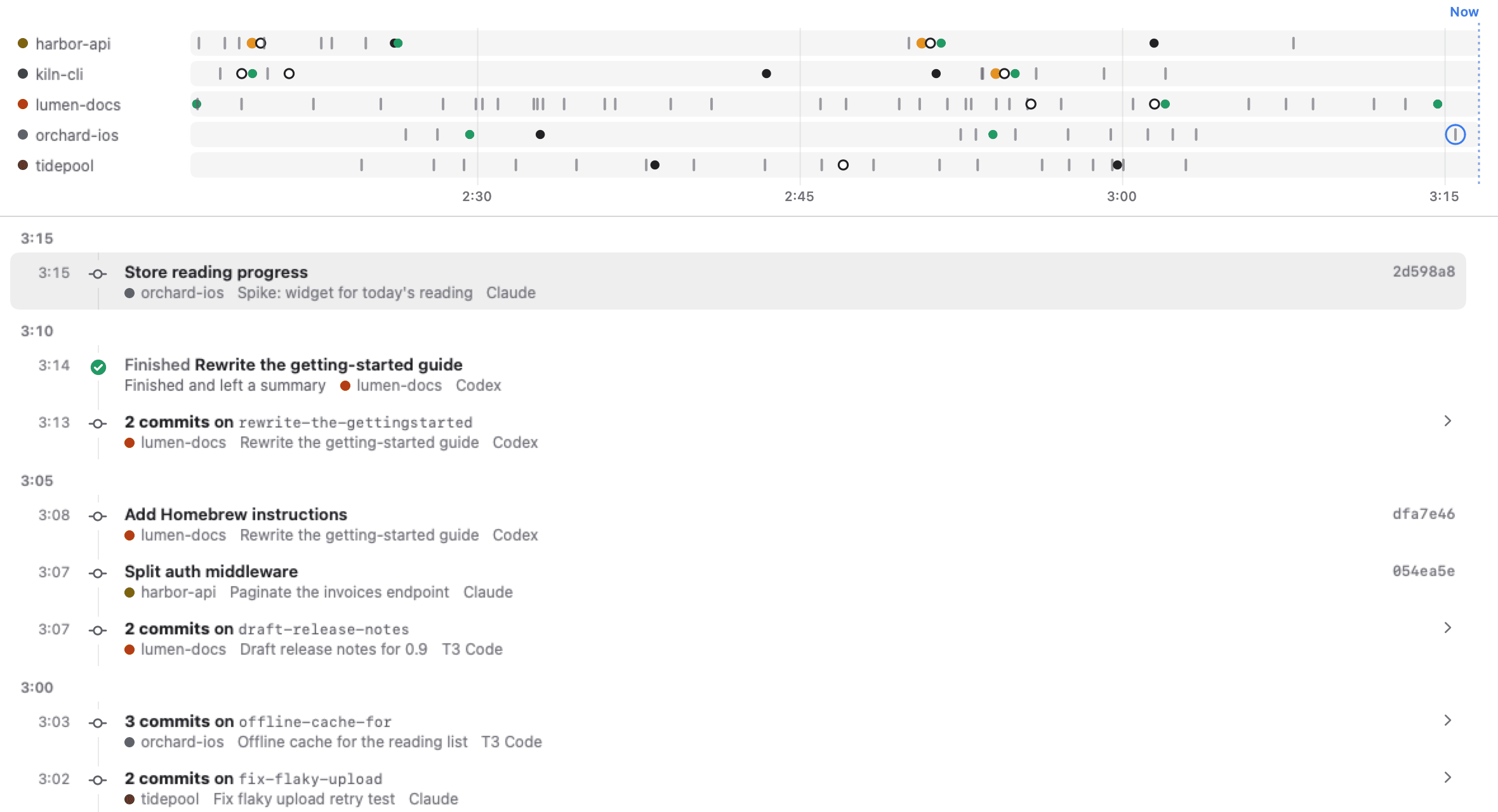
Zoom to 15 minutes, 1 hour or 6 hours.
It reads what’s already on your Mac.
No account, no server, no telemetry. Your agents’ files are opened read-only and Flightstrip never writes to them.
| Claude | ~/Library/Application Support/Claude/claude-code-sessions/~/.claude/projects/ |
|---|---|
| Codex | ~/.codex/state_*.sqlite (the newest)~/.codex/sessions/ |
| T3 Code | ~/.t3/userdata/statev2.sqlite~/.t3/userdata/state.sqlite (older installs)~/.t3/userdata/environment-id |
| Repos your sessions work in | .git/ reflogs, HEAD and config, for the Activity window’s commits and GitHub remote |
What goes online
Once a day, Flightstrip asks flightstrip.app for the latest version number. That request sends nothing about you or your sessions, and you can turn it off in Settings. To show your pull requests, it talks to GitHub using your gh login, or your own GitHub OAuth app with the token in your Keychain. It checks about every 60 seconds while the Activity window is open, and checks your login when Settings opens. Turn off “Show pull requests from GitHub” to stop the polling, and sign out to stop the login check.
What it keeps
Commit subjects, pull request titles, session titles, branch names, and project and file paths, in ~/Library/Application Support/Flightstrip/activity.sqlite. Anything older than 48 hours is cleared while the Activity window is open, so it can stay longer if you don’t open it. Needs-you and finished events are saved even when that window is closed. Replies and tool output aren’t kept, though a session title can be the first line of your first prompt when it has no other title. Settings, project colors, Rush filters, and done and snoozed session IDs stay in the app’s preferences. Message previews in the list are off by default.
Its limits
State comes from local files, and each app’s internal format can change between versions. Claude’s transcripts don’t record a pending approval, and a Claude session that finishes between two refreshes may never show as working.
Focus mode’s centering is the one thing that asks for Accessibility permission. It uses it only to find, measure, move and, if needed, shorten the session’s window, and never reads what’s in it or types into it. Without the permission, Focus mode still hides other apps.
If you share your screen, Settings can hide the floating window and Rush from screen sharing and screenshots.
Download Flightstrip.
Open the disk image and drag Flightstrip to Applications. It’s signed and notarized, so it opens like any other Mac app.
- Version
- 0.1.0
- Requires
- macOS 14 or later
- Runs on
- Apple silicon and Intel
- Price
- Free
- Updates
- Tells you when a new version is out
- SHA-256
b2a80ee2a07ee5cc5984bf7bc43705e1d80fa47def9b1eb70634fc3f24ff8d34